Slideshow Lab's Preview Tool gives you a scene-by-scene view of your project (script, images, audio, and animation) so you can review everything and request targeted changes without email chains or version confusion.
Over the next couple of minutes, this video walks you through how to use the Preview Tool. Prefer to read? Scroll down for the full breakdown with screenshots.
Slideshow Lab's Preview Tool gives clients a simple way to break down their project and make targeted edits. With a scene-by-scene breakdown of the script, images, audio, and animations, everything is organized and easy to update.
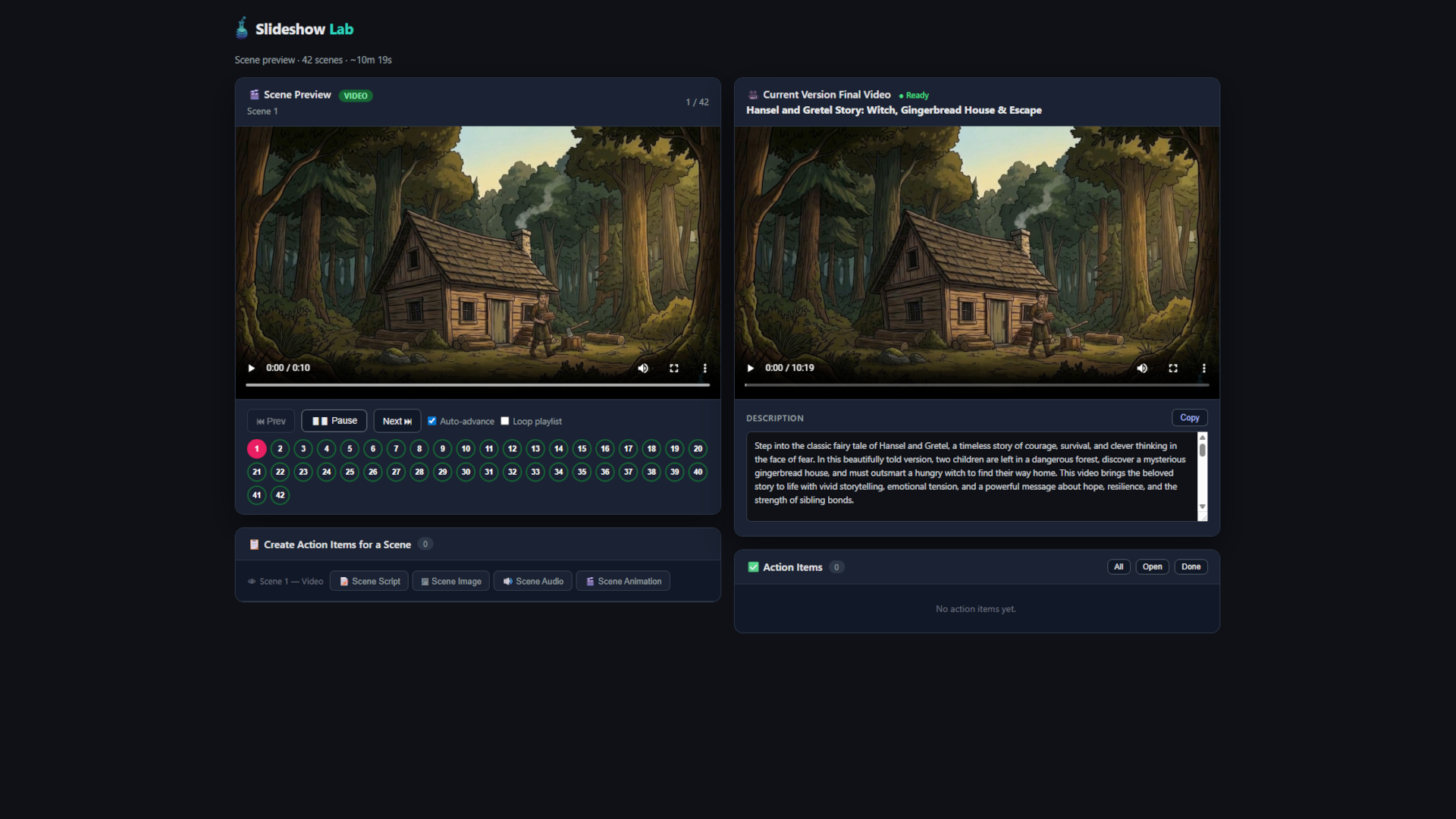
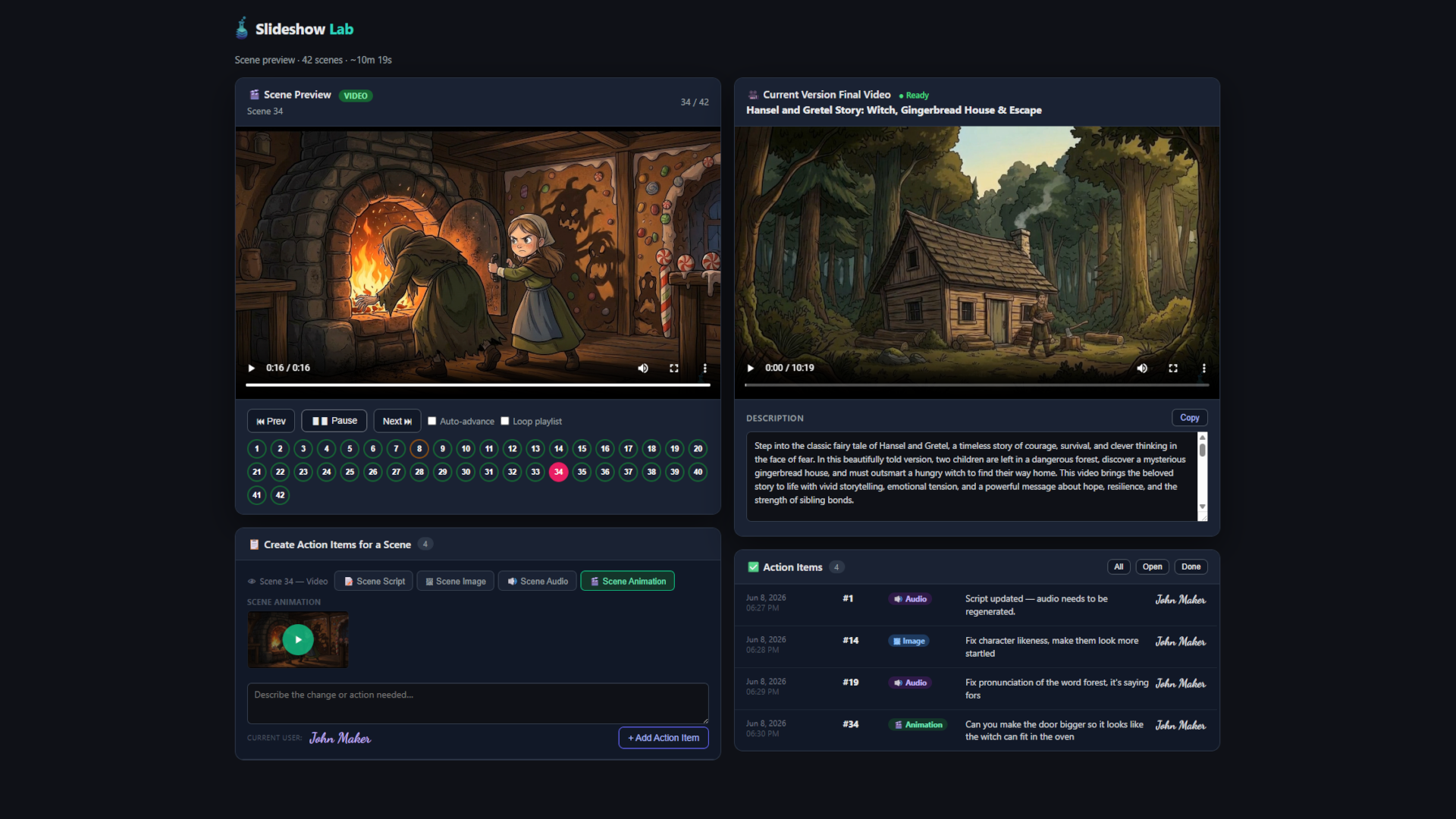
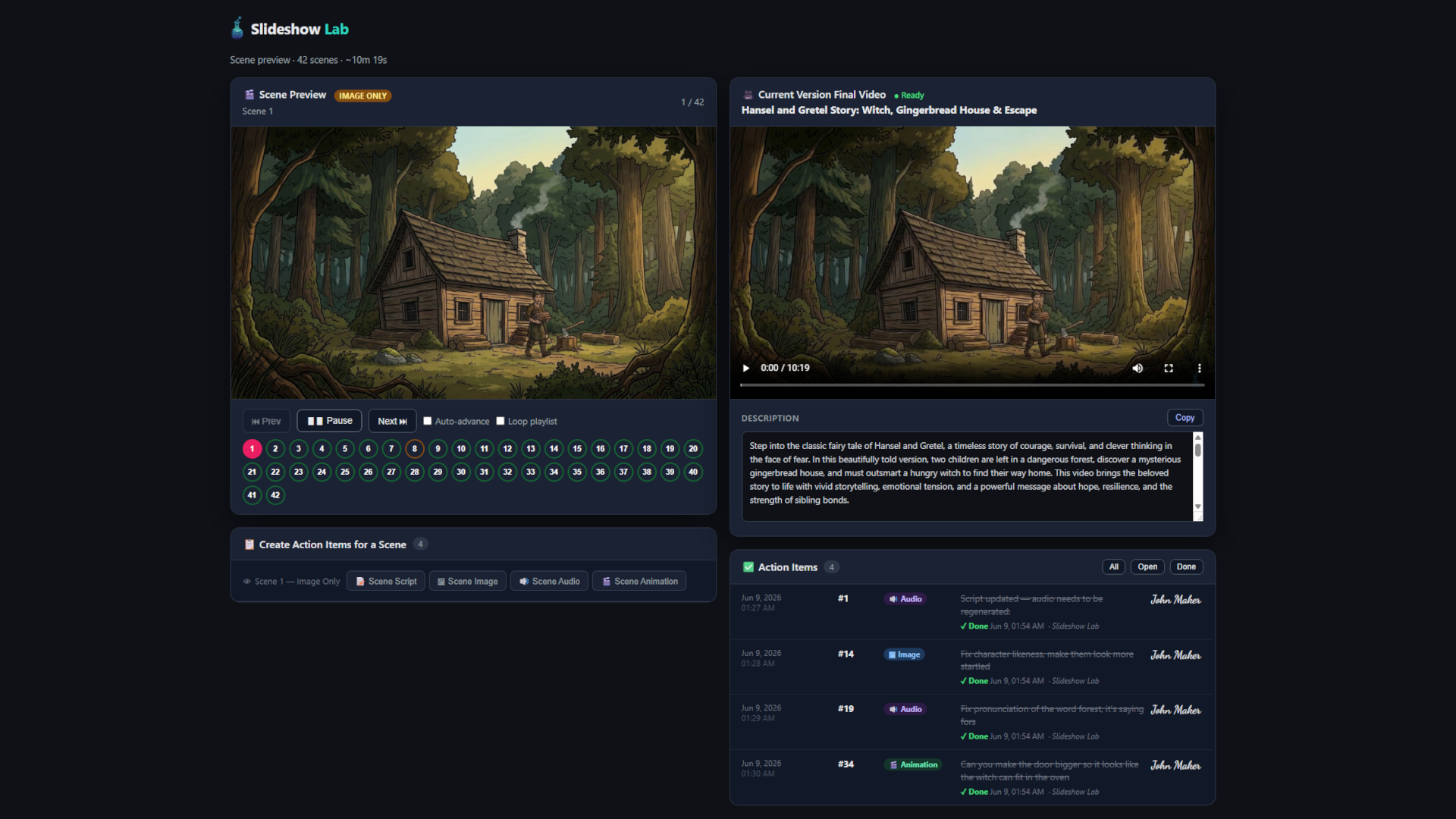
The left side of the page is where you'll create tasks to update your video scenes. On the right, you'll see the most recent render of your video, with an Action Item log below it tracking new, pending, and completed changes.
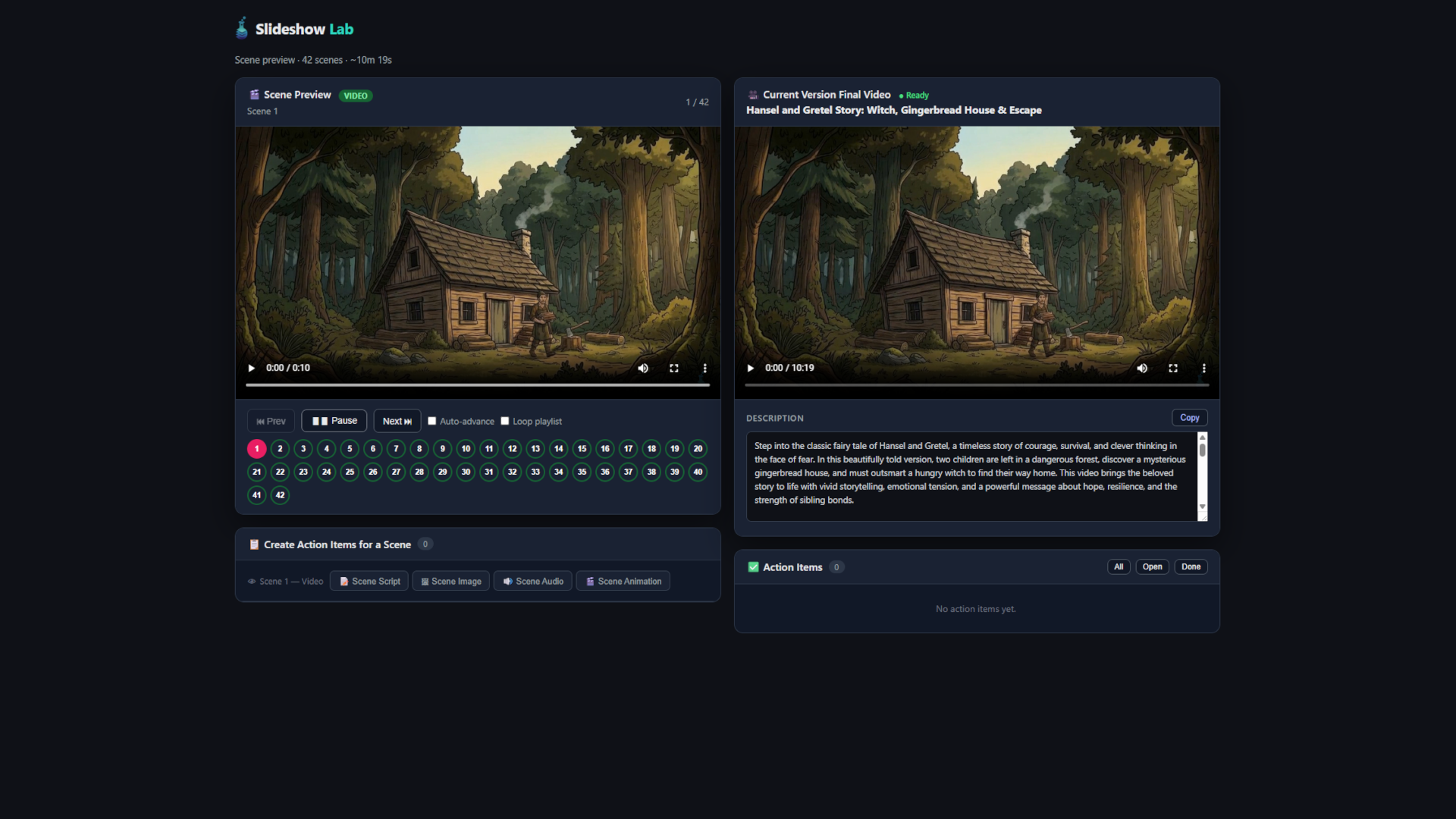
Clicking the Auto-Advance button plays through your scenes automatically, just like watching the finished video. This makes it easy to spot any problem areas at a glance.
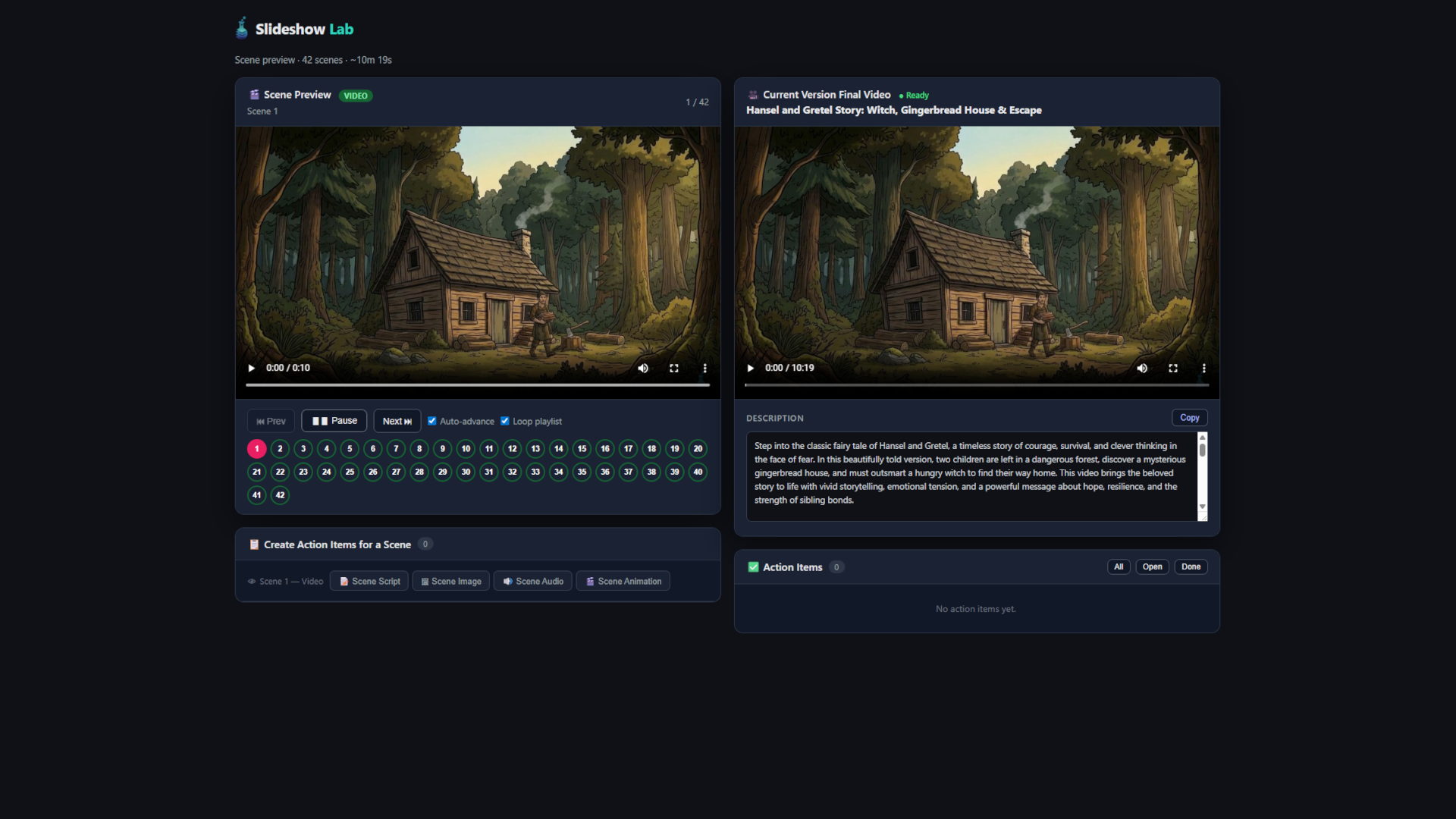
The Loop Video button is useful for shorter videos, allowing you to play through all the scenes continuously, ideal for evaluating the overall flow.
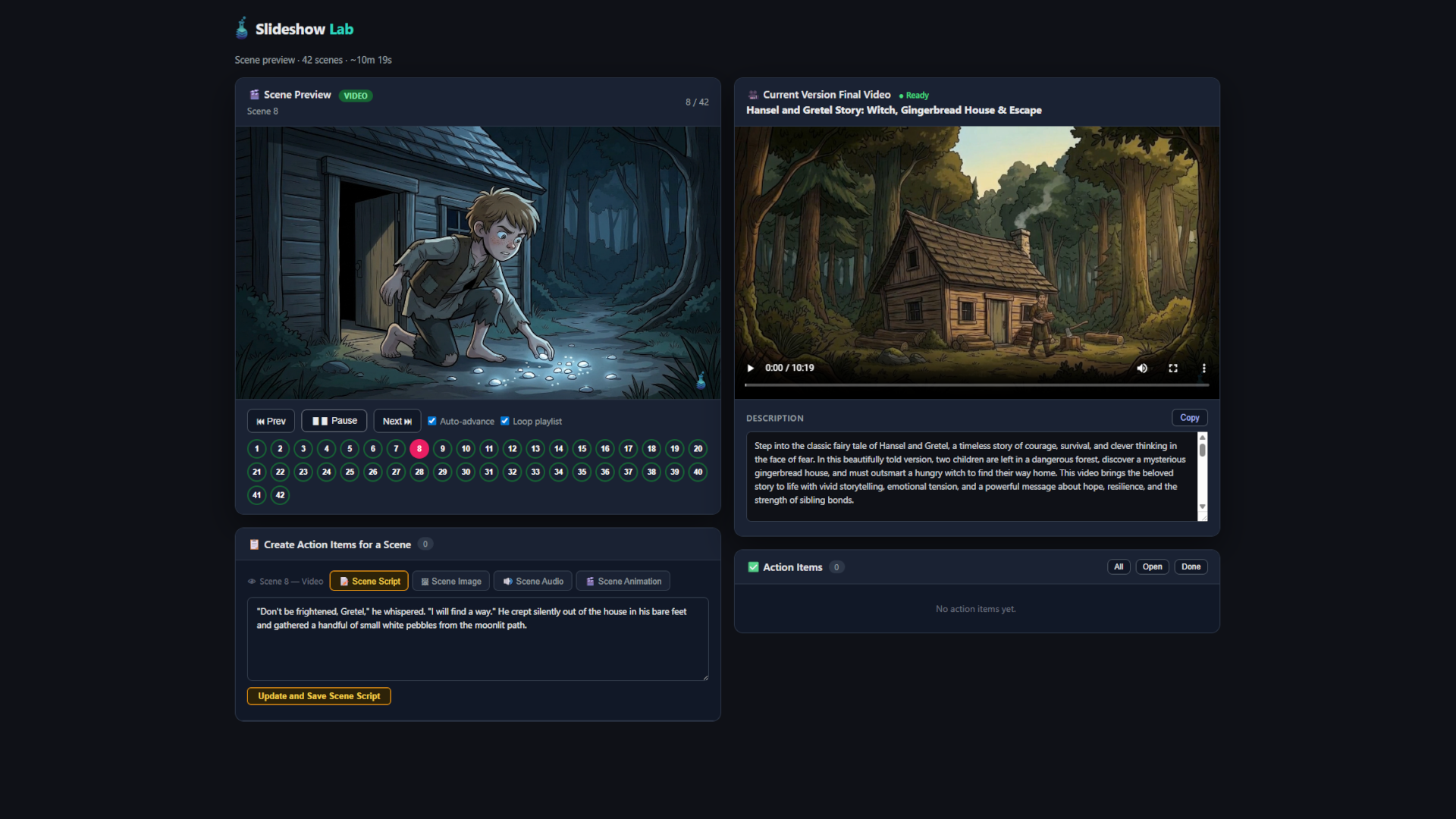
Clicking a scene number will load that scene, allowing you to review it and make changes to the script, image, audio, or animation.
To update the audio script, click the Scene Script button. Type your new or updated text in the box. This is the text that gets converted to audio.
When you're ready, click "Update and Save Scene Script." A new action item will be created, letting us know to remake the audio for that scene.
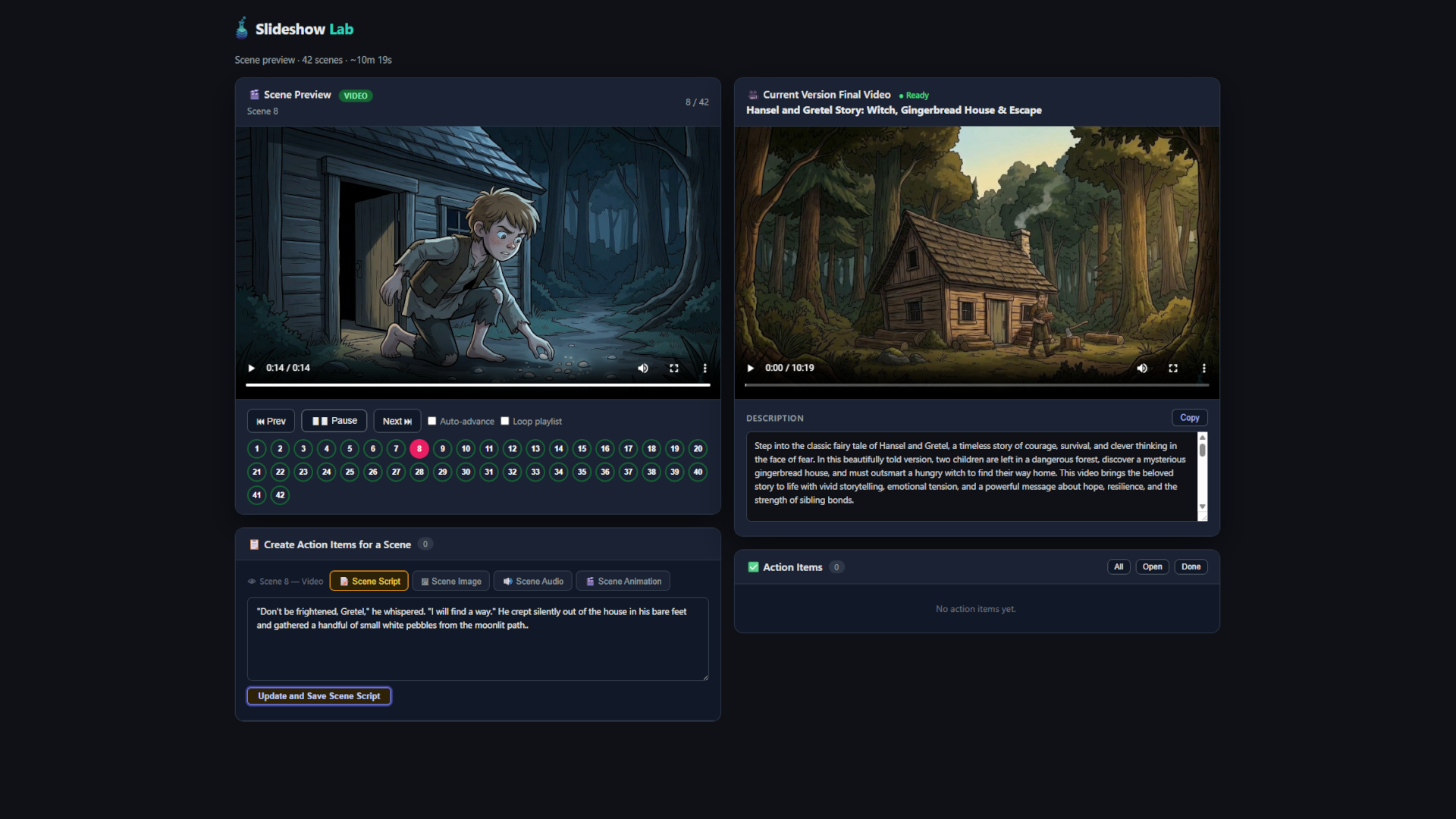
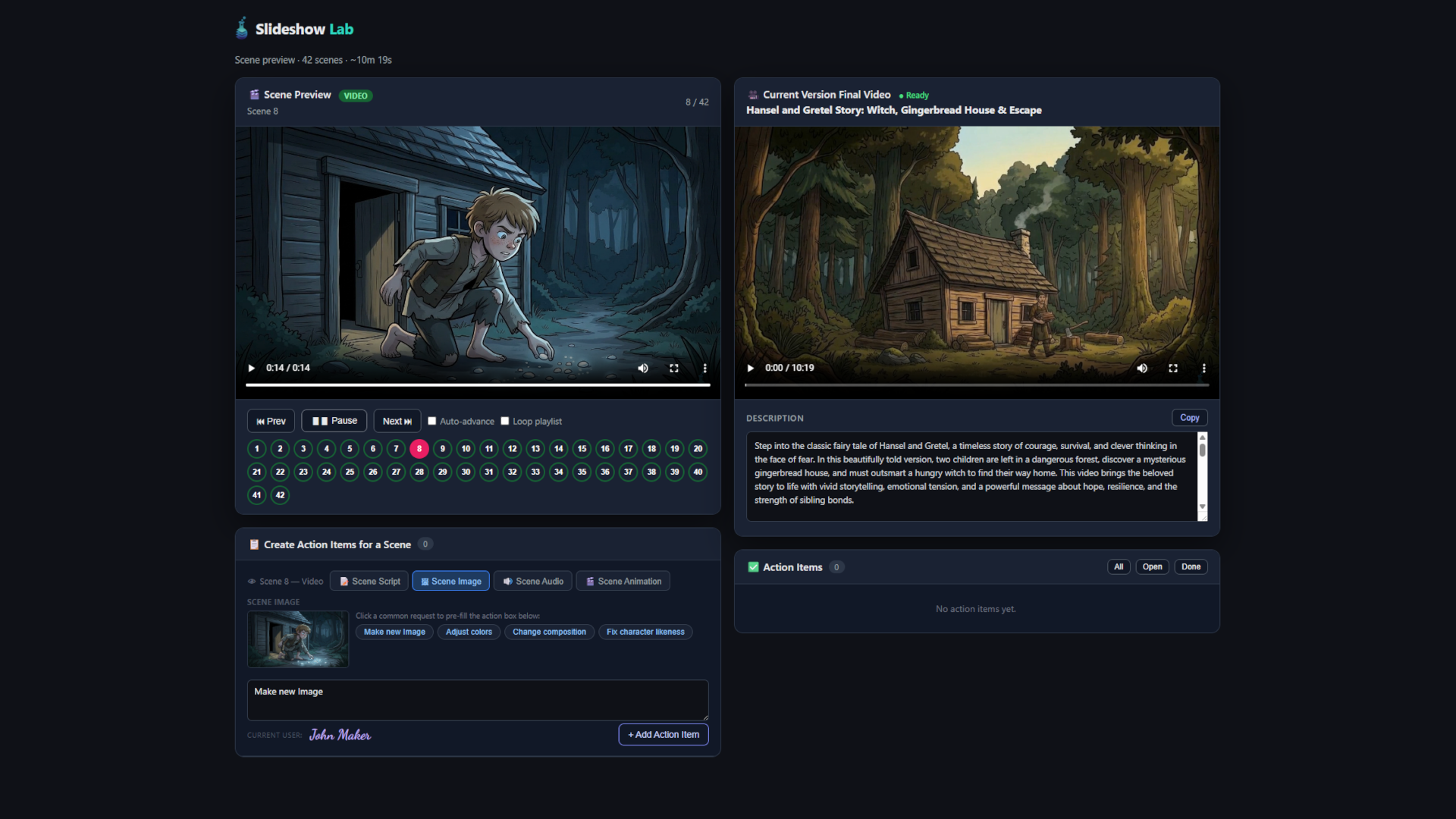
To make changes to a scene image, click the Scene Image button. From here you can request a new image entirely, or adjust specific elements such as making the scene lighter or changing the color of the stones.
You can also use the common request buttons to quickly populate the text box with a pre-set change. When you're done, click "Add Action Item" to submit the change for our team to complete.
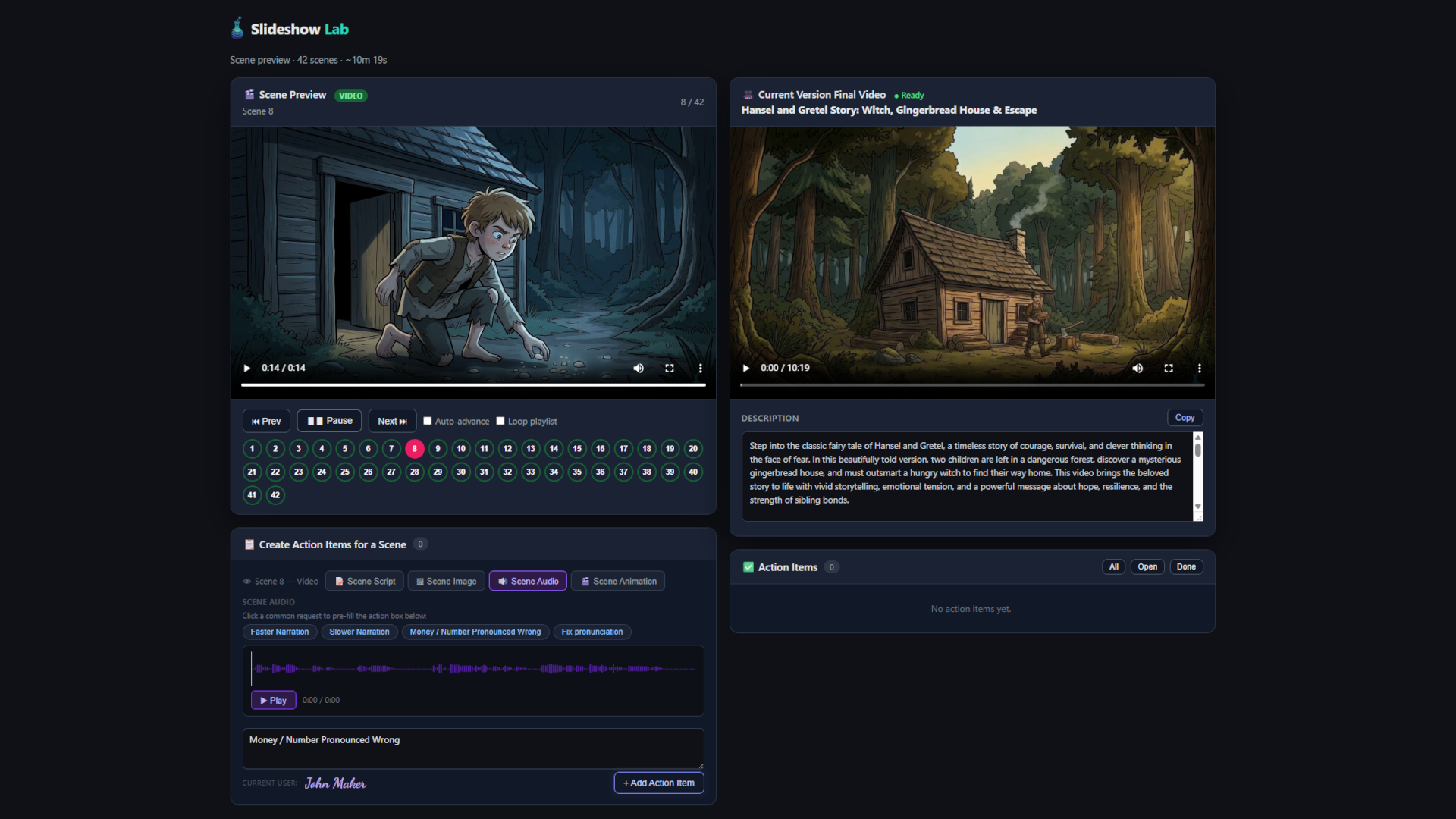
To make changes to a scene's audio, click the Scene Audio button. Here you can request adjustments to audio speed or cadence, or flag any mispronounced words.
You can also use the common request buttons to quickly populate the text box with a pre-set change. When you're done, click "Add Action Item" to submit the change for our team to complete.
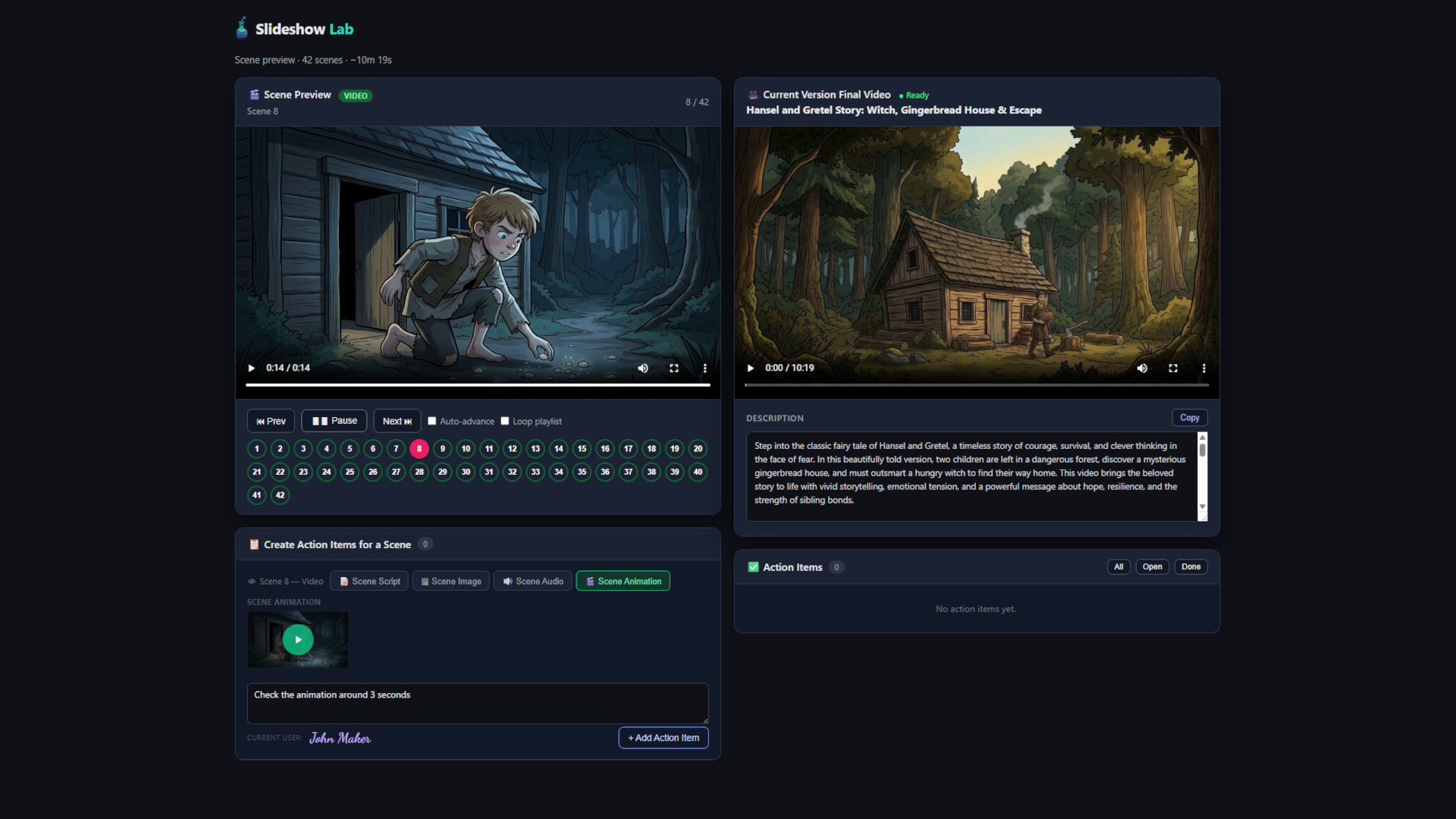
To make changes to a scene's animation, click the Scene Animation button. Here you can request specific animation changes, such as animating the moonlight instead of the trees.
When you're done, click "Add Action Item" to add it to your list of changes.
To preview the currently rendered video, click the play button in the upper right. Keep in mind that any pending edits in the Action Items list will not yet appear in this preview.
You'll also notice a watermark in the lower right corner. This will not appear in the final version of the video when it's available for download. Below the video you'll also find an automatically generated description and keywords for YouTube, which are optional and ready to use if needed.
Incomplete tasks will appear in the Action Items area. Each entry shows the time it was created, the related scene, the update category, the details of the task, and your team member who submitted it.
When a task is completed by Slideshow Lab, it will remain in the Action Item Log with a strikethrough and a timestamp showing when it was completed. This log ensures that no updates are missed and keeps us accountable for a quick turnaround on all changes.
Tell us about your project and we’ll walk you through the Preview Tool from day one.